
Required Documents Before You Begin
To streamline the application process, make sure you have the following documents and information ready:
- EIN confirmation letter.
- Formation documents: Articles of Organization or Certificate of Formation (and, in some cases, the Operating Agreement).
- Personal details of all company members holding more than 25% ownership, including a valid passport for each member.
- Mailing Address: Virtual address.
-
Trading or Physical Business Address: The physical location where you actually operate your business daily. This can be your personal residential address in your home country.
(Note: Wise does not accept P.O. Boxes or virtual agency addresses for this field).Please make sure to check the article Where can I use Wise?
-
Proof of Business Address: Must match the Trading Address provided (whether located in the U.S. or in your country of residence). Acceptable documents under the company or member's name include:
-
Utility bill (water, electricity, gas, or fixed landline/internet).
-
Bank or credit card statement.
-
Lease or rental agreement.
-
Access the Platform
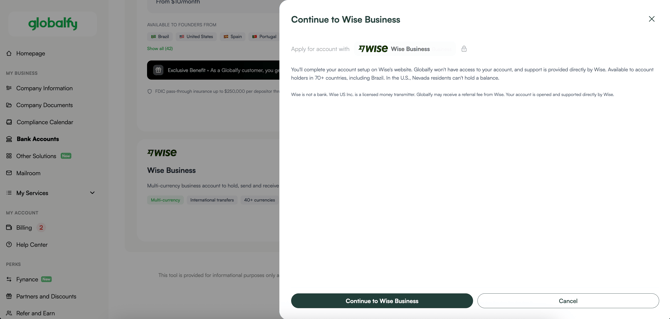
- Go to the Globalfy Platform.
- Click on “Bank Accounts” and select Wise.
- Read the information carefully and click on “Continue to Wise Business”.
Account Creation & Security Setup
-
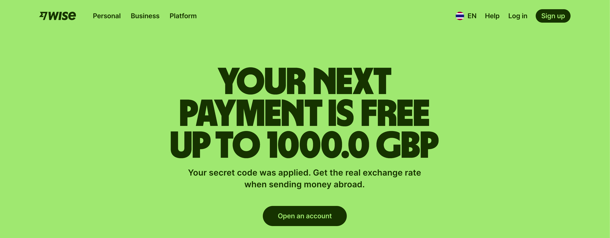
Start Sign-Up: On the Wise landing page, click Open an account or Sign up in the upper right corner.
-
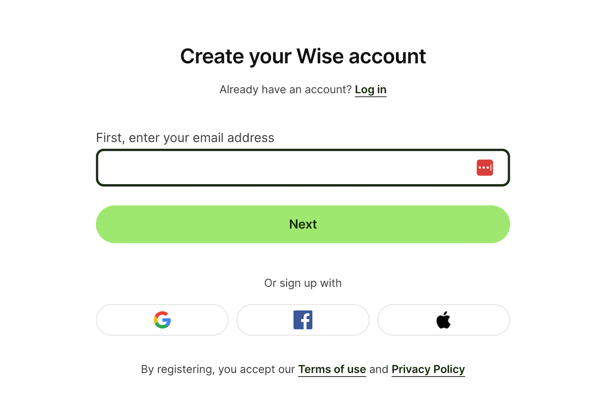
Provide Your Email: Enter your business email address and click Next. You may also sign up using Google, Facebook, or Apple credentials.
-
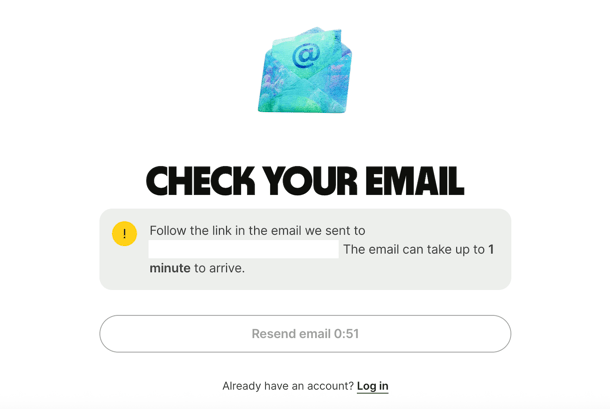
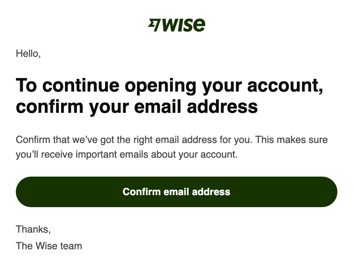
Verify Email Address: Check your email inbox for a message from Wise.
-
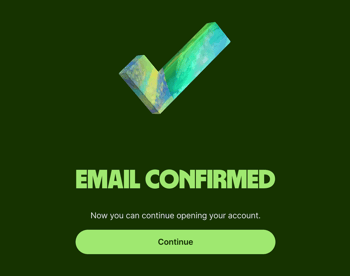
Click Confirm email address in the email, then return to your browser and click Continue.
-
-
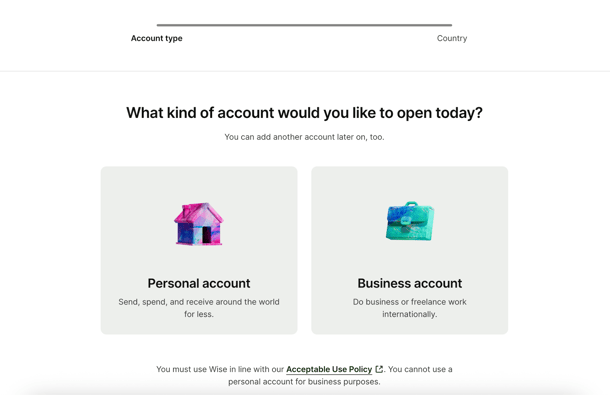
Select Account Type: Select Business account to manage company or freelance international finances.
-
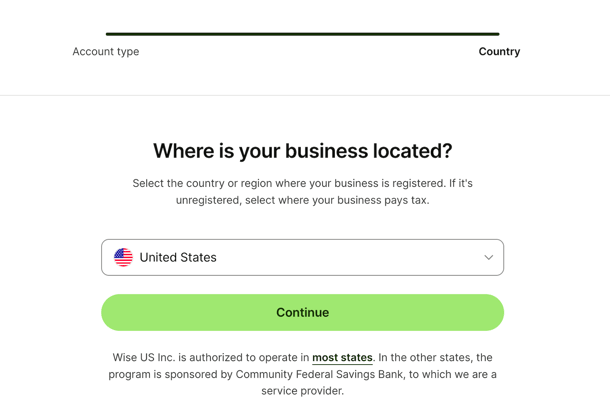
Choose Business Location: Select the country where your business is legally registered (United States) and click Continue.
-
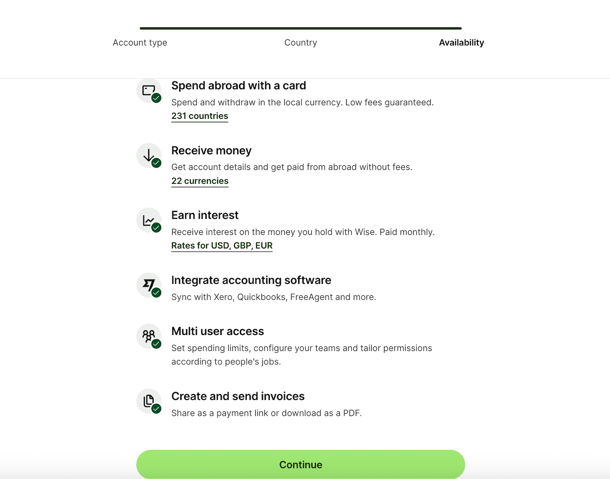
Review Available Features: Review the available services for your country (cards, local account details, multi-user access, accounting integrations) and click Continue.
-
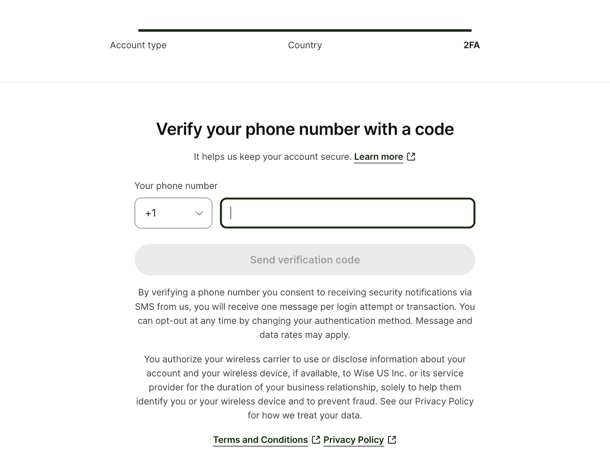
Set Up Two-Factor Authentication (2FA): Select your country code, enter your mobile phone number, and click Send verification code.
-
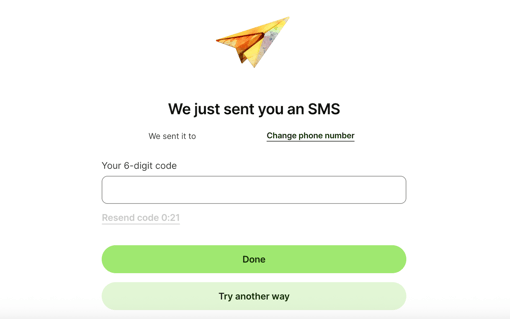
Enter the 6-digit SMS code received on your phone and click Done.
-
-
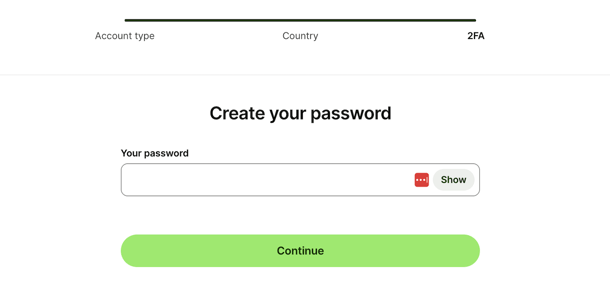
Create Password: Enter a secure password for your new Wise account and click Continue.
Business Profile & Verification Details
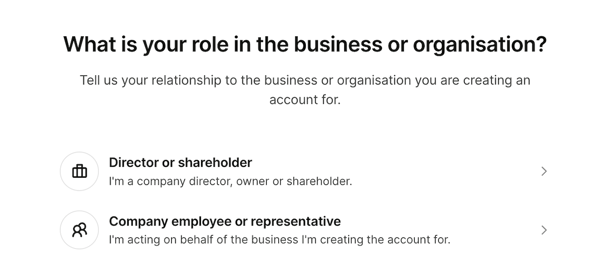
- Select Your Role: Indicate whether you are a Director or shareholder or a Company employee or representative.
- Enter Business Details: Input your business legal information:
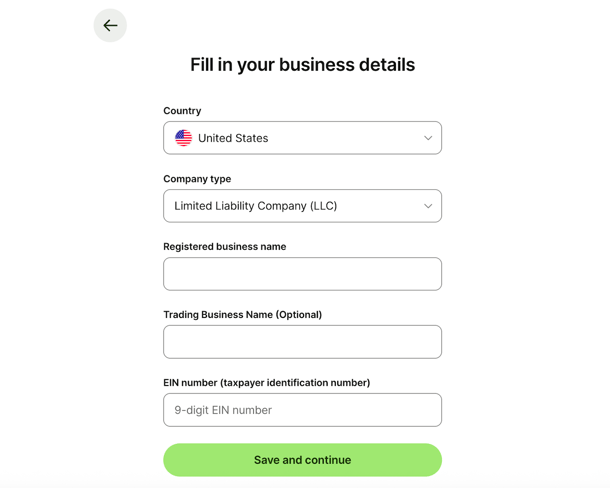
- Country & Company Type (e.g., LLC)
- Registered Business Name & Trading Business Name (if applicable)
- EIN Number (9-digit taxpayer identification number)
- Click Save and continue.
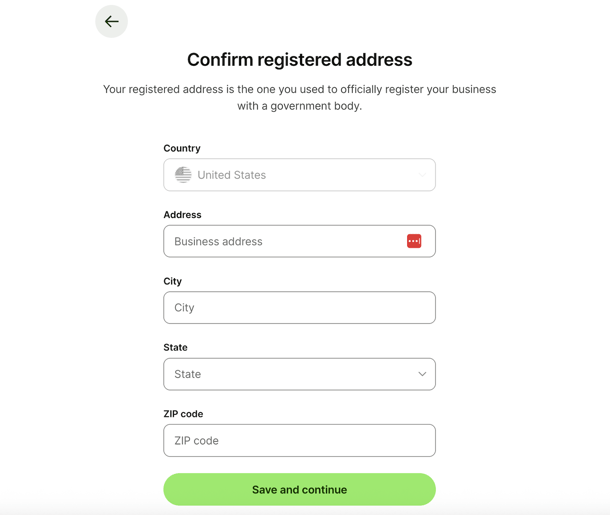
- Confirm Registered Address: Enter the official registered address used during your company incorporation (Street, City, State, ZIP code) — enter Globalfy's Virtual Address — and click Save and continue.
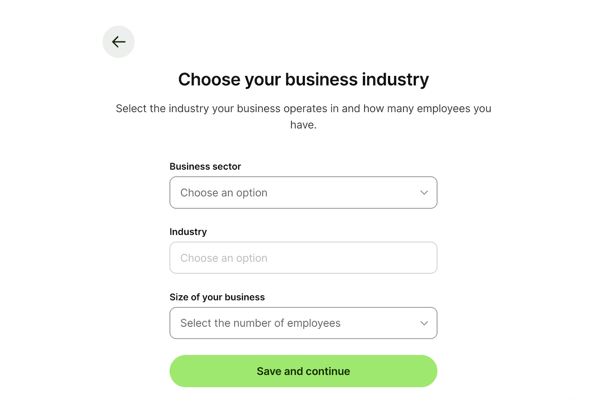
- Select Industry & Business Size: Choose your business sector, specific industry, and number of employees. Click Save and continue.
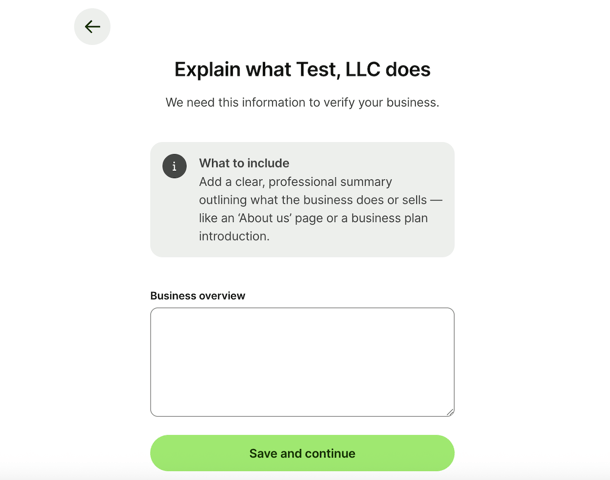
- Provide Business Overview: Type a brief summary describing your company's core operations, products, or services. Click Save and continue.
- Share Website or Online Profile: Provide a direct link to your official company website, e-commerce store, or active business social media page. Click Continue.
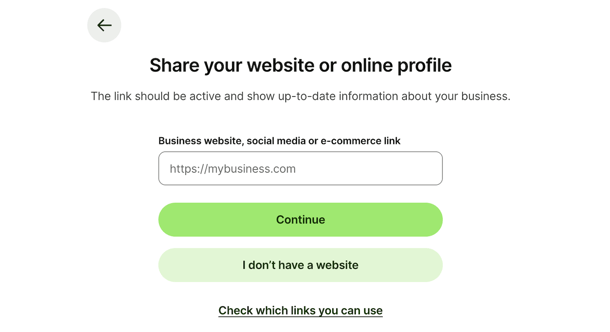
- Note on requirement: Providing a link is optional at sign-up (click "I don’t have a website" to skip), though Wise may request proof of business activity later during review.
- Accepted links: Links must lead directly to your official website or specific business page/listing (generic URLs like facebook.com or amazon.com are not accepted).
- Add Trading Address: Enter the physical address where daily business operations take place and click Continue. Review the definition window and click Confirm and continue.
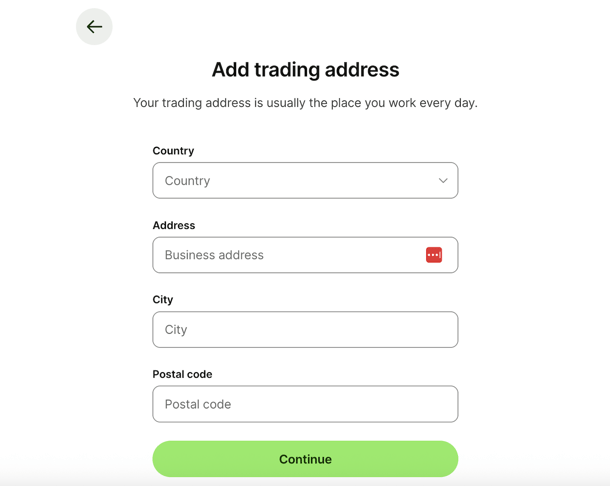
- Note on address: This can be an office, co-working space, or your personal residential address in your home country (Wise does not accept P.O. Boxes or virtual agency addresses for this field).
- Note on address: This can be an office, co-working space, or your personal residential address in your home country (Wise does not accept P.O. Boxes or virtual agency addresses for this field).
Personal Information & Plan Selection
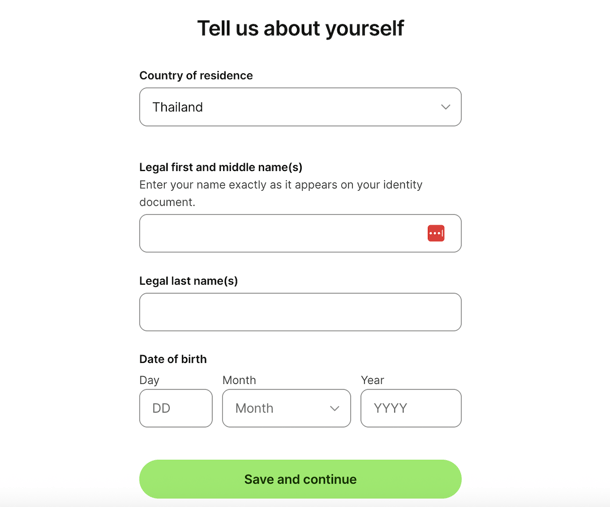
- Provide Personal Information: Enter your legal full name, date of birth, and country of residence. Click Save and continue.
-
Confirm Personal Address: Provide your personal home address and click Confirm and continue.
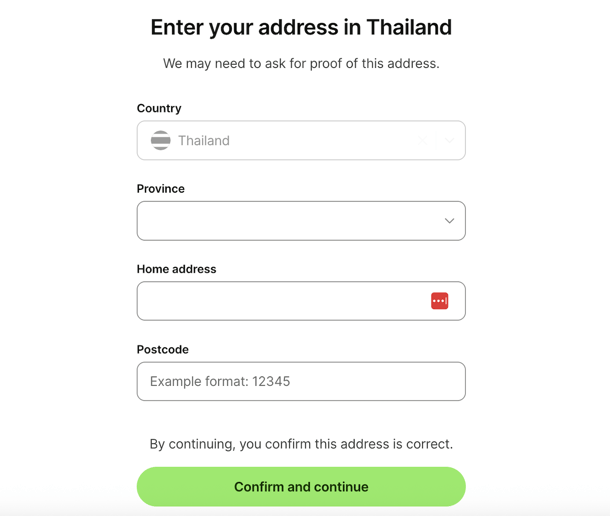
- Important Note: Make sure your address is entered exactly as it appears on your utility bill or bank statement, as Wise may require a proof of address document for verification later.
- Important Note: Make sure your address is entered exactly as it appears on your utility bill or bank statement, as Wise may require a proof of address document for verification later.
- Choose Your Business Plan: Select the plan that best fits your business needs (Basic or Advanced).
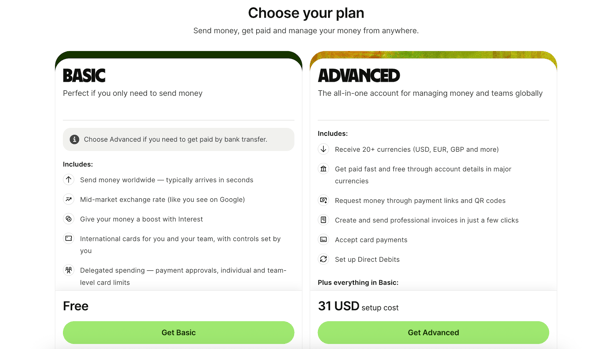
- Access Dashboard: Once your plan is selected, you will see a confirmation screen. Click Explore Wise to enter your new Wise Business dashboard. Wise will review your submitted details and verify your account.


If you still have any questions or need further assistance with this topic, we are here to help!
✉️ Simply contact us via email at help@globalfy.com or send a WhatsApp message to +1 (866) 428-2030. Our team will be happy to assist you.